
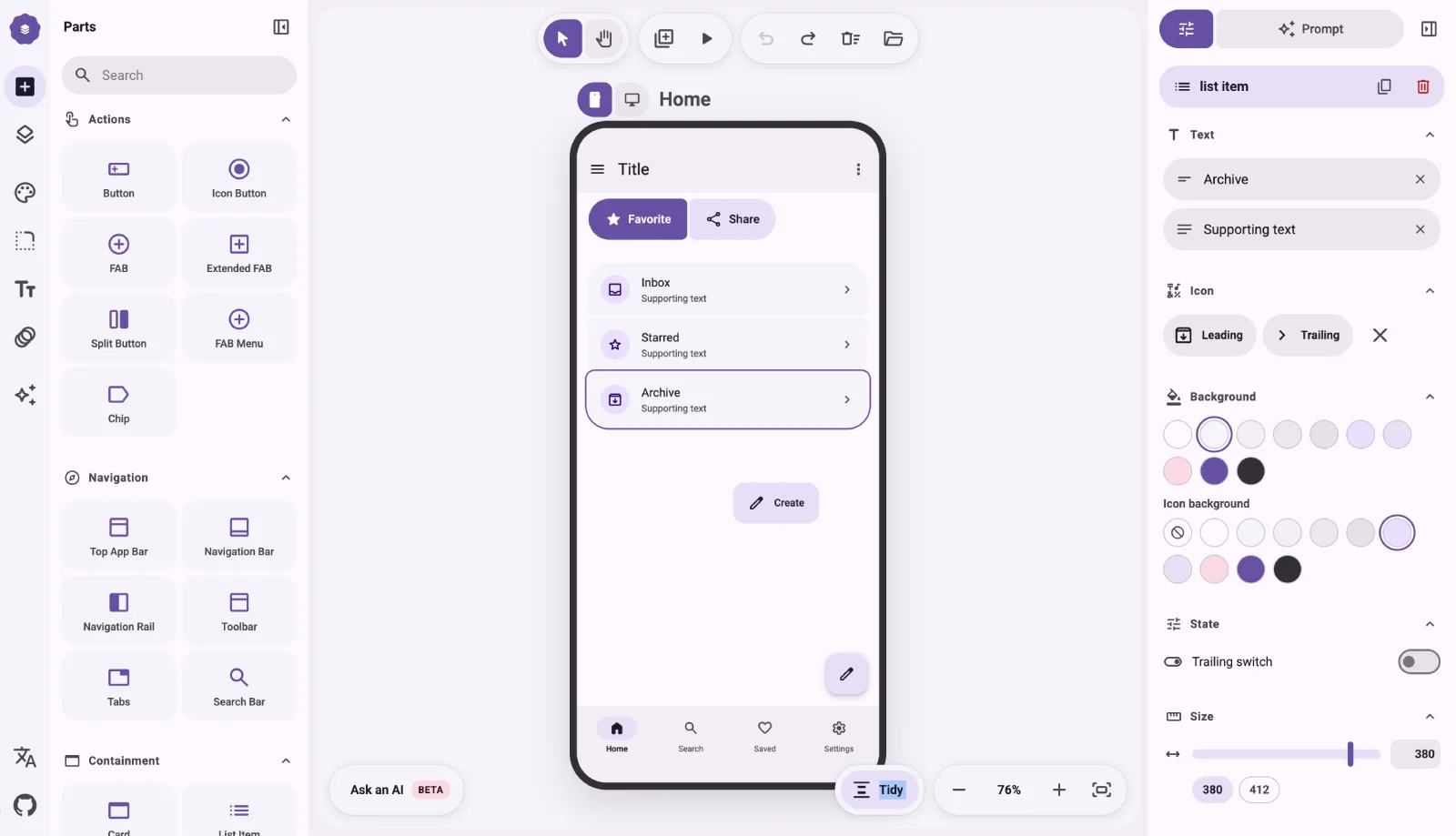

You prompt an AI to build an Android screen. It hands you back generic Material components that look nothing like the app in your head. M3E Canvas fixes the gap. You lay out the interface visually, then hand the model a prompt that already knows what you want.
What M3E Canvas actually does
M3E Canvas is a web tool for assembling Material 3 Expressive interfaces. You drag real components onto a canvas: buttons, FABs, navigation bars, cards, list items. You arrange them the way you want the screen to look. The tool reads that layout and writes a structured prompt you can paste straight into an AI coding assistant.
It runs in the browser. Nothing to install, no account, no build step. Open the live M3E Canvas tool, assemble a screen, copy the prompt. The code lives on GitHub under an open source license, so you can read it, fork it, or file an issue.
Why Material 3 Expressive matters
Material 3 Expressive is Google’s latest evolution of Material Design. It leans into bigger shapes, bolder color, and motion that reacts to touch. The Material 3 guidelines cover the rules, and they run long. Reading them is one thing. Getting an AI to honor them in generated code is another.
Here is the problem M3E Canvas solves. When you ask a model for a Material screen in plain words, it averages out. You get the safe defaults: a stock app bar, a flat button, spacing that ignores the spec. The expressive part, the reason M3 looks current, goes missing. By building the layout in the tool first, you pin down the exact components and states, and the prompt carries that intent instead of leaving it to chance.
How the prompt export works
The canvas keeps a live model of your screen. Every component you place has a type, a role, and a position. When you hit export, the tool serializes all of that into text a language model reads well:
- ❶ The components on screen and their Material 3 names
- ❷ How they stack, so the AI knows the layout order
- ❸ Enough structure for the model to write real Compose code
You copy that block and paste it into your assistant. The prompt does the describing for you, so you skip the part where you try to explain a visual layout in a paragraph of English and hope the model guesses right.
Fitting it into vibe coding
Vibe coding is building software by prompting instead of typing every line. It works until the interface gets specific. Layout is the exact thing plain language handles badly. “Put the favorite button next to share, then a list of three items with icons” turns into a guessing game the moment the screen has more than two elements.
M3E Canvas gives that workflow a visual front end. You do the layout by eye, where eyes are good, and let the tool translate it into words, where words are precise. The AI still writes the code. You just stop fighting it over where things go.
What you can build with it
The tool targets Android app screens, and the component set reflects that:
- ❶ Home screens with a navigation bar and FAB
- ❷ List and detail views built from Material cards
- ❸ Settings pages with switches and list items
- ❹ Onboarding flows that string several screens together
If you are prototyping an Android app and want it to look like it belongs on a 2026 phone rather than a 2019 one, this is a fast way to get there without memorizing the spec.
Free, open source, no lock-in
M3E Canvas is free and open source. The prompt it produces is plain text you own. There is no paid tier gating the export, no runtime you have to keep installed, and no vendor sitting between you and your code. If the project ever stalls, the source is on GitHub and you can carry it forward yourself.
That independence is the point. A tool that hands you portable output and then gets out of the way earns a spot in your workflow. One that traps your work behind a login does not.
Why it belongs in your workflow
You want Android screens that look current, and you want them fast. M3E Canvas gives you a visual way to lay out Material 3 Expressive components and a prompt that carries your intent into the AI. Build the screen, copy the prompt, let the model write the code.
For a solo builder shipping with AI, that saves the slow part: explaining a layout in words. When you want reference designs for the screens you assemble, our free Figma files and design and code kits cover the same mobile-first, ship-fast workflow.


.webp)


